



WordPress is the world’s most popular content management system (CMS). In fact, more than one third of all web pages on the internet are built with WordPress! One of the reasons it’s so popular is its ability for website owners to add functionality without needing to know how to write code. This is done with WordPress Plugins.
WordPress is really good at what is does – allowing people to publish content on the internet. But it doesn’t do everything a website owner needs. That’s where plugins come in.
Plugins are an amazing way to extend your website’s capabilities, introduce new functionality or features, and create a flexible backend that suits your business’ needs.
Similar to installing an app on your phone, when you add a plugin to your WordPress website, you’re adding a new tool you can use. With almost 64,000 free plugins in the WordPress repository, if you can dream it, you can probably do it with WordPress.
That said, not all plugins are created equal. There are some things you should know about finding plugins, managing them, and monitoring their impact on your website.
Let’s dive in 🏊♀️
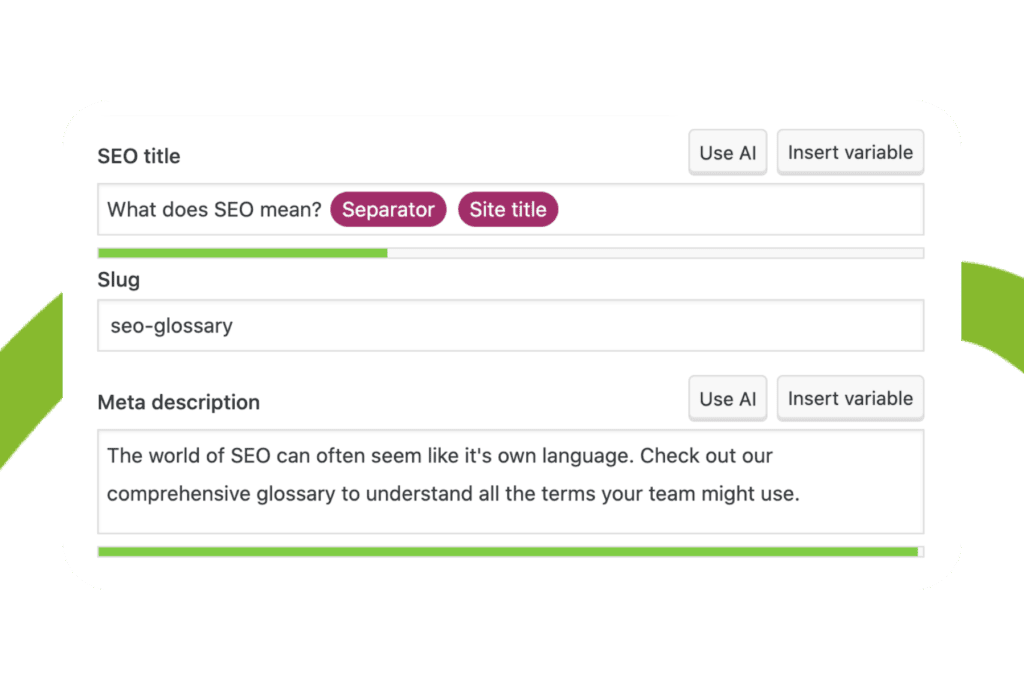
Table of Contents
ToggleStart with what your website needs. You might need some inspiration ✨
When deciding what plugins your website needs, it’s best to work out what it is that your website actually does. What are your goals for your website? What’s the purpose? What outcome are you trying to achieve?
Keep in mind, the more plugins you install, the more processing power your web host will need to provide and, potentially, the slower your website will load. So let’s not go overboard here! But there are a few different kinds of website plugins we recommend at a minimum.
A page builder 👷
We always recommend a page builder that allows you to create new pages and edit existing pages with ease. WordPress does come with its own Block Editor, and it has really improved over the last couple of years, but it’s still fairly cumbersome next to a proper visual builder. To get good results out of it, you really need the eye and technical know-how of a web developer, which defeats the purpose for most business owners who just want to update their own pages.
Elementor is our preferred page builder but it’s good to know that it can be fairly heavy on memory, and it’s not the easiest tool to use if you’re chasing a lean, high-performance site. We still use and recommend it because the flexibility and ease of use are hard to beat, but it’s something to factor in if page speed is a top priority for your project.
A contact form builder 📞
WordPress does not come with form functionality built in. We recommend and use Gravity Forms, which is a premium plugin; Contact Form 7 is a decent free option. If you do decide to use the Elementor page builder, it has form functionality built in.
Anti-spam filter 🗑️
As soon as you introduce a form, you need to worry about spam. We absolutely recommend an anti-spam filter like CleanTalk (premium) or Akismet (which has a free option suitable for personal use).
An SEO plugin 🔍
SEO plugins introduce tools that help you to publish content, which the search engines love. We recommend Rank Math as our go-to SEO plugin. Its free version gives you access to features that Yoast, our previous recommendation, only offers on its paid plan, which makes it a fairly easy decision for most of our clients.
A redirection plugin 🔄
Broken links are almost impossible to monitor manually. We use and recommend Redirection (free). It logs broken links and lets you fix them. This functionality comes built-in with Rank Math, if you choose that for your SEO solution.
A caching plugin 🧠
Every time you visit a WordPress web page, the server needs to run code to generate that page. A caching plugin allows your web server to respond to page requests quicker by sending a cached version of a web page. This is important because the slower your site is, the more likely it is that a visitor will abandon your website.
WP Fastest Cache remains a solid free choice if you’re after something straightforward, but for our own client sites, we use WP Rocket. The premium price tag buys you a bit more control and, in our experience, better results out of the box.
A firewall plugin 🔥
Firewall plugins protect your website from spam, web threats, and brute force attacks. We recommend Wordfence (free, with paid features) for this.
A security plugin 🔒
Security plugins are a must for protecting your website. We recommend iThemes Security (free, with paid features).
An eCommerce plugin 🛍️
Building an online store on WordPress means WooCommerce (free, with paid add-ons) is a must.
An AI plugin 🤖
This is a fairly new category, but it’s one that’s making a bit of a mark in the industry. WordPress has released its own official AI plugin. It’s largely built around helping with content, so think drafting, editing, and refining copy directly inside the WordPress editor.
WordPress has released its own official AI plugin. It’s largely built around helping with content, so think drafting, editing, and refining copy directly inside the WordPress editor.
Elementor has gone a different route with its own Elementor AI, which leans more toward design, helping you generate layouts, images, and styling suggestions as you build a page.
And Rank Math now includes an AI component built into its SEO workflow, helping you create and refine content so it performs better in search. None of these tools are essential yet, but AI is becoming a pretty big part of the WordPress plugin conversation, and it’s worth keeping an eye on how these tools develop over the coming year.
The quality of your plugins matters. Here’s how to do your due diligence ✅
It’ll be really important that the plugins you choose are reputable and well-coded.
Plugins are typically relied on to create some kind of functionality on your website. So, if your plugin breaks, at best, that functionality on your website will also break; at worst, it could break your whole website.
You can evaluate the quality of a plugin by:
- Checking the compatibility of the plugin with the latest WordPress version
- Checking how recently the plugin was updated (we’d steer clear if it hasn’t been updated in the last six months)
- Reading user reviews and ratings
- Analysing the track record of the developer

There are a few different places to find WordPress plugins 🔌
You can search for WordPress plugins in a few different spots. The first and most obvious one is the official WordPress plugin directory.
However, you can find third-party plugin stores or purchase plugins directly from the source.
Another way to find plugins is through reputable thought leaders in the web design and development industries and taking recommendations from them.
We’d always recommend finding your plugins through trusted sources to ensure secure and reliable plugins that don’t put your website at risk.

Your plugins need to be compatible with your WordPress website 💘
We touched on this before, but it’s essential that you make sure your plugins are compatible with the version of WordPress you’re running (this should be the latest version).
They also need to be compatible with the other plugins on your website. This can get kind of complicated for the non-techies, but because different plugins are coded by different developers, there can be a chance that code from two plugins will conflict, especially if one plugin is kept up-to-date and the other is effectively abandoned.
That’s why you should regularly check the plugins on your website to ensure that they are still being updated by their developers.
Plugins can affect your website’s performance. Here’s what to consider.
You know how your computer has a set amount of memory, and the more applications you have open, the slower your computer tends to load?
Your website is kind of like the computer, and the plugins are apps. The more plugins you install, generally, the more ‘bloat’ your website will have. This means slower loading times and reduced performance. But we’ll get to that shortly.
It’s a good idea to run a speed test before and after installing a new plugin, especially if the plugin affects the public-facing front end of your website.
A good example of this are plugins that add an Instagram feed to your website. Some plugins look up Instagram every single time you load a page, and then display the images located at instagram.com. This can catastrophically slow down your website.
A better solution is a plugin that checks Instagram regularly and downloads images to your website whenever it finds new posts. That way, visitors only ever see images loading from your website, and they are never waiting for your site to check with Instagram what the latest images are to display. Your feed is now on your website, and there is no extra load time.
Let’s talk about plugin bloat (you can have too much of a good thing)
We touched on this just before, but the more complex the plugins and the more of them you have, the more likely it is that your website will fall victim to ‘plugin bloat’.
Plugin bloat can slow your website down and have a negative effect on its performance. This impacts the experience your website visitors have when they visit your website and can have a drastic impact on your SEO results, too.
You should always consider the necessity of each plugin. It can be a bit of a balancing act: which is more important? The memory use and loading time of your website, or the functionality?
Another tactic is looking for plugins that offer multiple features in one so you can maximise the functionality of your website while minimising the space used on your website.
Consider the support you’ll have available 💚
The better support available with the plugin, the better the experience you’ll have with it.
Like any product you purchase, you want to make sure there’s reliable customer support and documentation.
Look for plugins with comprehensive documentation and responsive support channels. So, when you need support with your plugin, you can feel confident you’ll be able to get it.
Security matters. Look at the security and updates of your plugins 🔒
We mentioned earlier that it’s important to check how often plugins are updated and to not opt for any plugin that hasn’t been updated in the last six months.
Plugins are like websites. The code can be vulnerable to breaks and security issues. It’s important to opt for plugins that are being monitored and patched as required.
Test your WordPress plugins & monitor your website’s performance 🏃

ExciteCare protects your website and keeps your plugins up to date 💚
If you haven’t heard, Excite Media offers a product called ExciteCare. It’s our service that supports you and your website with website backups, updates, security monitoring and free WordPress support.
This includes the installation and upkeep of your plugins, maintaining your website and its security, and helping with website updates.
Find out more about it on the ExciteCare page.

